Form settings
Form settings control how your donation form behaves and appears. These are form-wide options that apply to the entire form, not individual blocks.
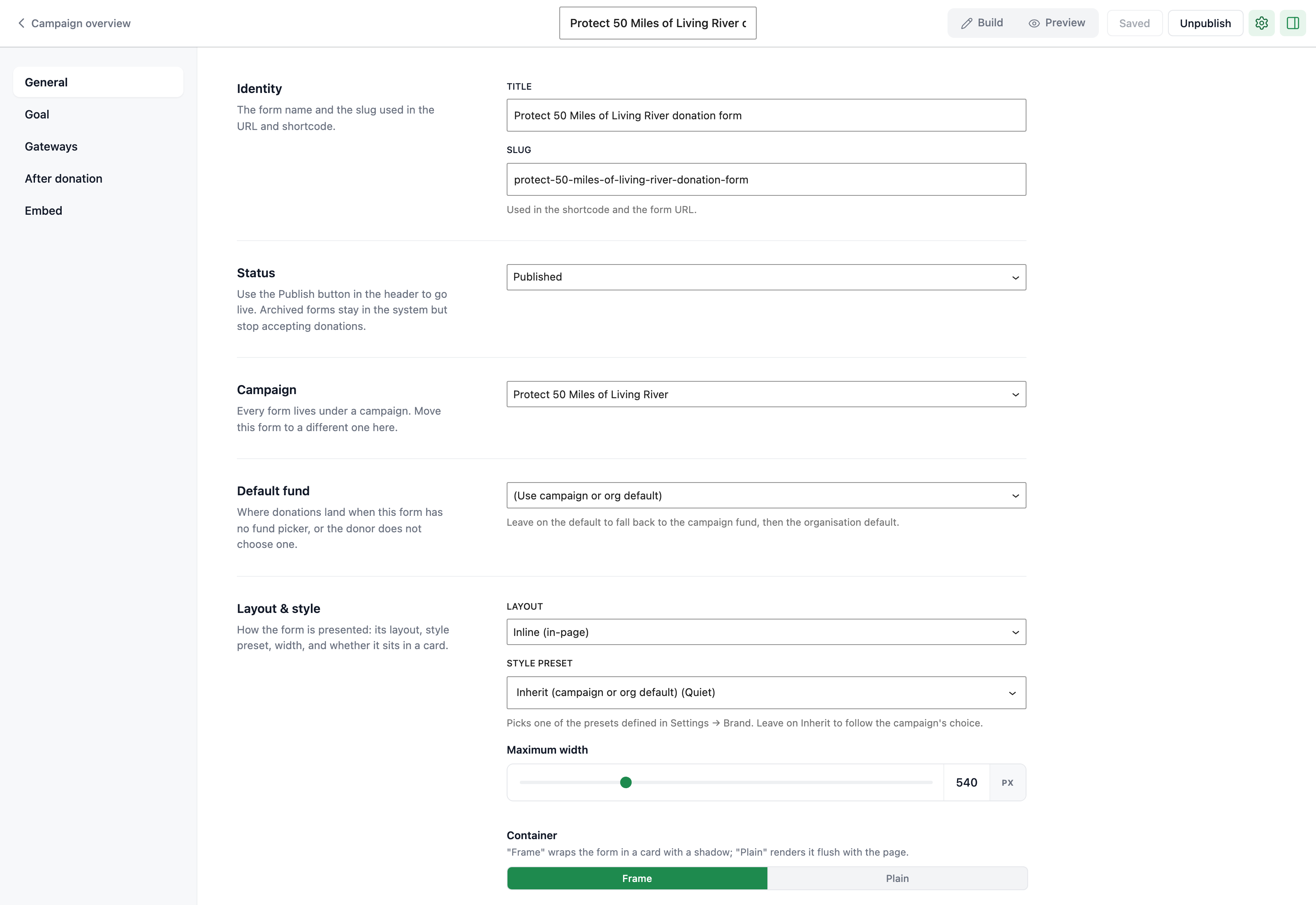
Open them with the settings button in the form builder header, next to Publish. The settings screen replaces the canvas and is split into five tabs: General, Goal, Gateways, After donation, and Embed.
Test mode
Test mode lets you try out a form without processing real donations. Each form has its own test mode toggle, at the bottom of the Gateways tab, so you can test one form while keeping others live.
When test mode is on:
- No real payments are processed.
- You can verify the form works correctly before going live.
- Donors will not be charged.
- Donations made through the form are flagged as test data and left out of reporting.
Turn off test mode when you are ready to accept real donations.
Layout options
The layout setting controls how your form appears on the page. You have two options.
| Layout | Description |
|---|---|
| Inline | The form displays directly on the page where you embed it |
| Modal | The form opens in a popup overlay when triggered |
Choose inline when you want the form visible on the page without any extra interaction. Choose modal when you want to save page space and show the form only when a donor clicks a button or link.
Container style and width
Container style controls the visual frame around your form. You have two options.
| Style | Description |
|---|---|
| Frame | The form appears inside a visible border or card-like container |
| Plain | The form has no visible container and blends with the surrounding page |
Width
Set the form width to any value between 320px and 1200px. This controls the maximum width of the form container.
- Use a narrower width (320-600px) for sidebar forms or modal layouts.
- Use a wider width (800-1200px) for full-page inline forms.
Thank-you message
The thank-you message appears after a donor completes their donation. Use it to express gratitude and confirm the donation was successful.
Write a clear, warm message that:
- Thanks the donor for their donation.
- Reassures them the donation was received.
- Optionally provides next steps or additional information.
Redirect URL
The redirect URL sends donors to a specific page after they complete their donation. If set, donors are redirected to this URL instead of seeing the thank-you message on the form.
Common uses for redirect URLs:
- A dedicated thank-you page with additional content or social sharing options.
- A page with related campaigns or volunteer sign-up opportunities.
- An external page for surveys or follow-up actions.
Leave this field empty to show the thank-you message on the form instead.
Goal configuration
This sets an optional goal tracked for this form alone. The Goal block can display it as a progress bar, or show the parent campaign’s goal instead.
Goal type
Choose from four goal types.
| Type | Description |
|---|---|
| Amount | Track progress toward a fundraising total |
| Donations | Track the number of completed donations to this form |
| Donors | Track the number of unique donors who give through this form |
| No goal | Disable the goal (no progress bar or target on this form) |
Goal target
Depending on the goal type, you set a target value.
- Amount goal: Enter the target amount in your organization’s currency. The progress bar fills based on the total raised.
- Donations goal: Set the target count. The progress bar fills based on the number of donations.
- Donors goal: Set the target count. The progress bar fills based on the number of unique donors.
Gateway restrictions
Gateway restrictions let you control which payment gateways are available on a specific form. This is useful when you want different forms to offer different payment methods.
The Gateways tab lists every gateway installed on your site, whether or not it is switched on site-wide. Tick the ones donors can use on this form. Leave every box unticked to allow all the gateways you have configured under GiveFlow, then Settings.
If you allow a gateway that is not enabled site-wide, the pre-launch checks in the form editor flag it, because donors cannot actually pay with it.
If you add a Payment gateways block to the form, that block takes over the list. The checkboxes here are disabled while the block is present, and you set the allowed gateways in the block instead.