Roles and permissions
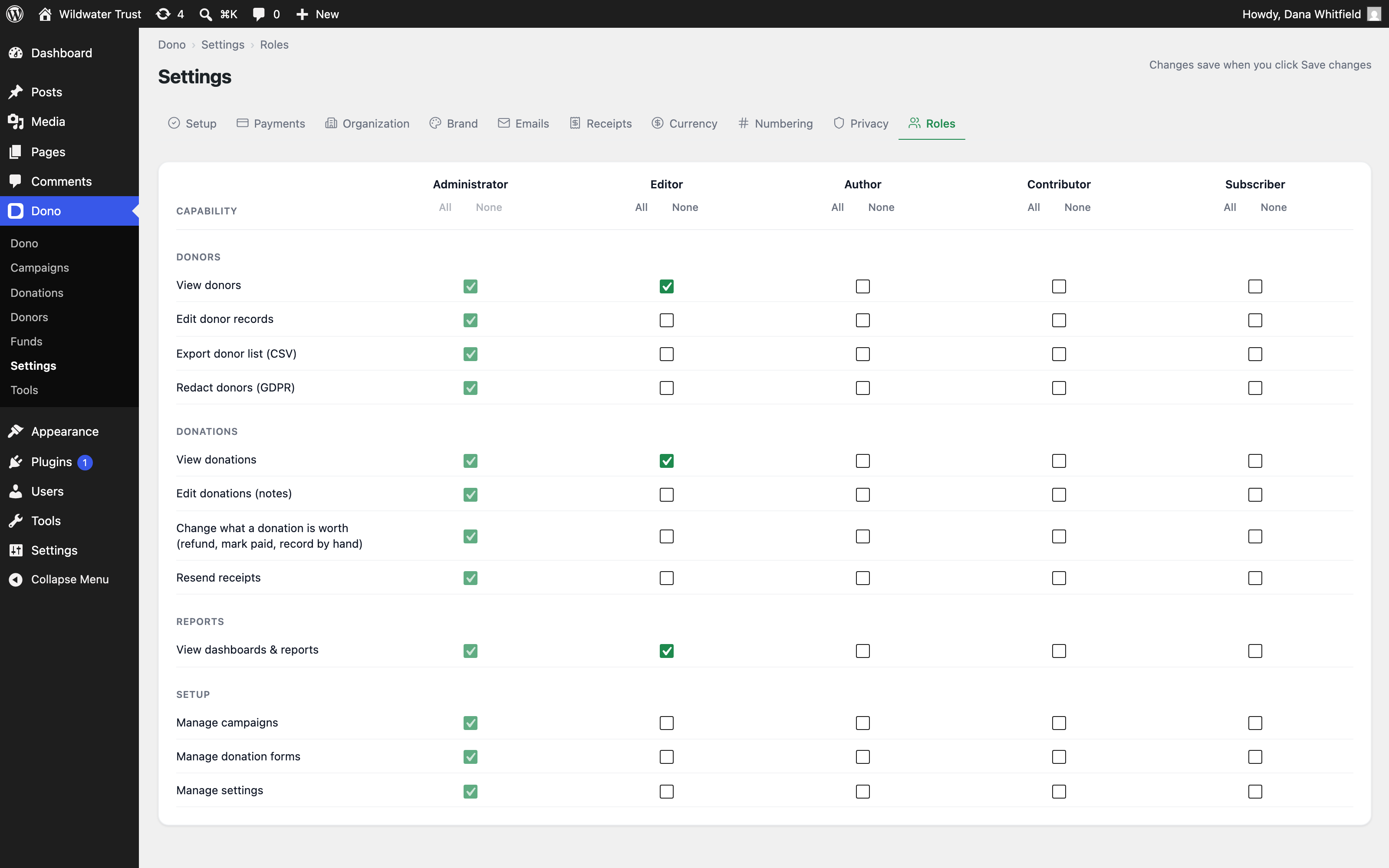
GiveFlow uses a capability-based permission system to control access to its features. You can assign 12 capabilities across your WordPress user roles to determine who can view, edit, and manage your fundraising data.
Capabilities
GiveFlow defines 12 capabilities organized into four groups.
Donors
- giveflow_view_donors — view donor profiles and donation history
- giveflow_edit_donors — edit donor details
- giveflow_export_donors — export the donor list to CSV
- giveflow_redact_donors — permanently redact donor personal data
Donations
- giveflow_view_donations — view donation records
- giveflow_edit_donations — edit donations (notes)
- giveflow_refund_donations — change what a donation is worth: refund it, mark it paid, or record one by hand
- giveflow_resend_receipt — resend donation receipt emails
Reports
- giveflow_view_reports — view the dashboard and fundraising reports
Setup
- giveflow_manage_campaigns — create, edit, and delete campaigns
- giveflow_manage_forms — create, edit, and delete donation forms
- giveflow_manage_settings — access and modify GiveFlow settings
Default role mappings
GiveFlow assigns capabilities to built-in WordPress roles automatically:
- Administrator — receives all 12 capabilities
- Editor — receives the three view capabilities:
giveflow_view_donors,giveflow_view_donations, andgiveflow_view_reports
Other roles receive no GiveFlow capabilities by default. You can customize this in the settings.
Customize role permissions
- Go to GiveFlow > Settings > Roles. The tab is only visible to users who can manage WordPress options.
- You will see a capability matrix with your WordPress roles as columns and GiveFlow capabilities as rows.
- Check or uncheck boxes to grant or revoke capabilities for each role. Use All or None above a role to set its whole column at once.
- Click Save changes to apply your edits.
The Administrator column is locked on. An administrator always holds every GiveFlow capability.
Menu visibility
GiveFlow controls which menu items each user sees based on virtual giveflow_access_* capabilities. If a user lacks the required capability, the corresponding menu item is hidden entirely.
Users only see the GiveFlow submenu pages they have permission to access. A user with only giveflow_view_donations will see the Donations page but not Campaigns, Funds, Donors, Forms, or Settings.
Two entries are the exception. The top-level GiveFlow menu and the Tools page appear for anyone holding at least one GiveFlow capability, whichever one it is.