Managing donors
This guide covers how to view, edit, and manage donor records in GiveFlow. You will learn about donor types, encrypted data, GDPR redaction, and CSV exports.
Donors list
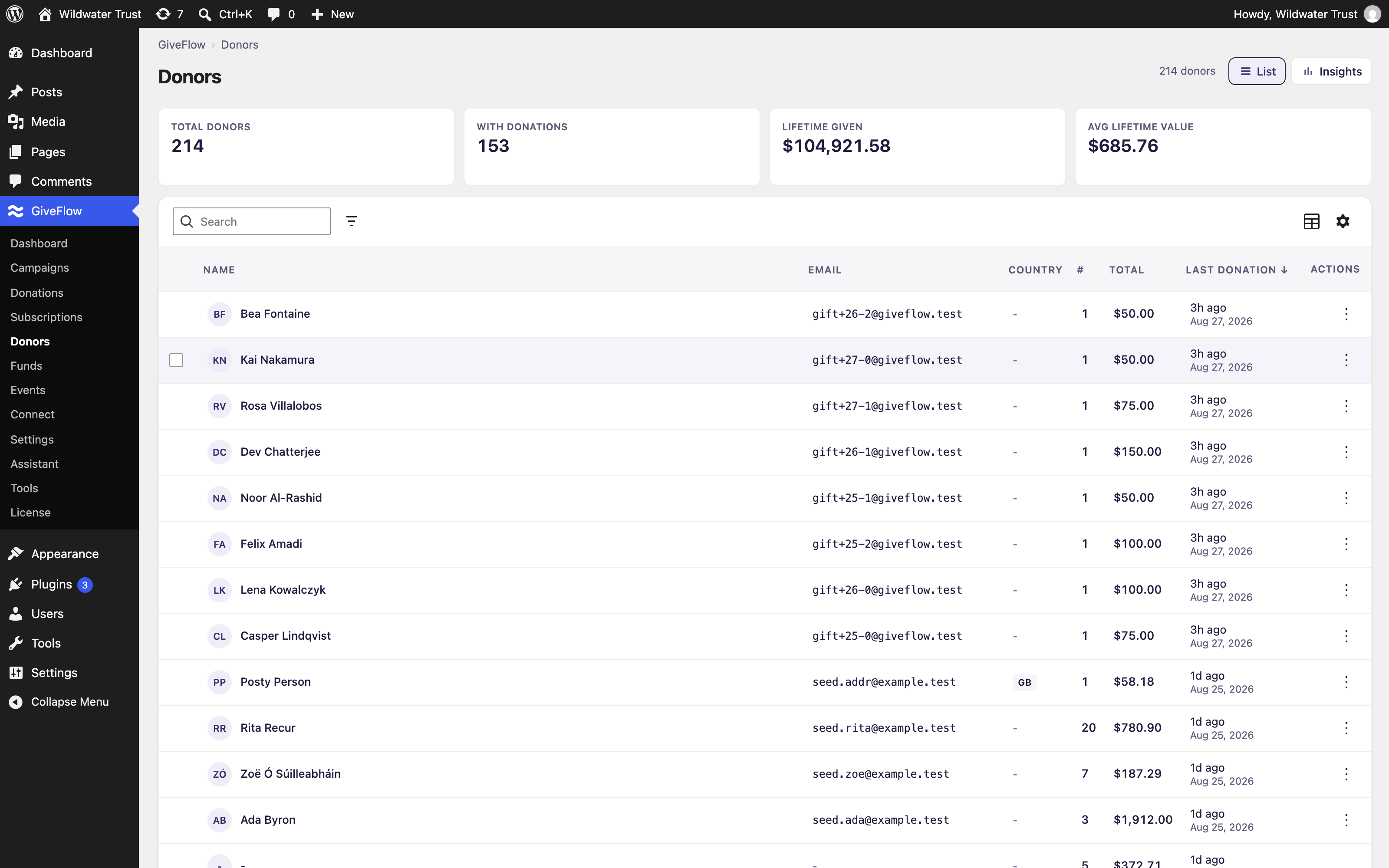
The donors list shows all donor records in your system. You can access it from the GiveFlow menu in your WordPress admin sidebar.
Each row displays the donor’s name, email, country, number of donations, total donated, and the date of their last donation. A donor type other than individual is shown under the name. You can filter the list by country and donor type, and search it by name or by exact email address.
Donor detail
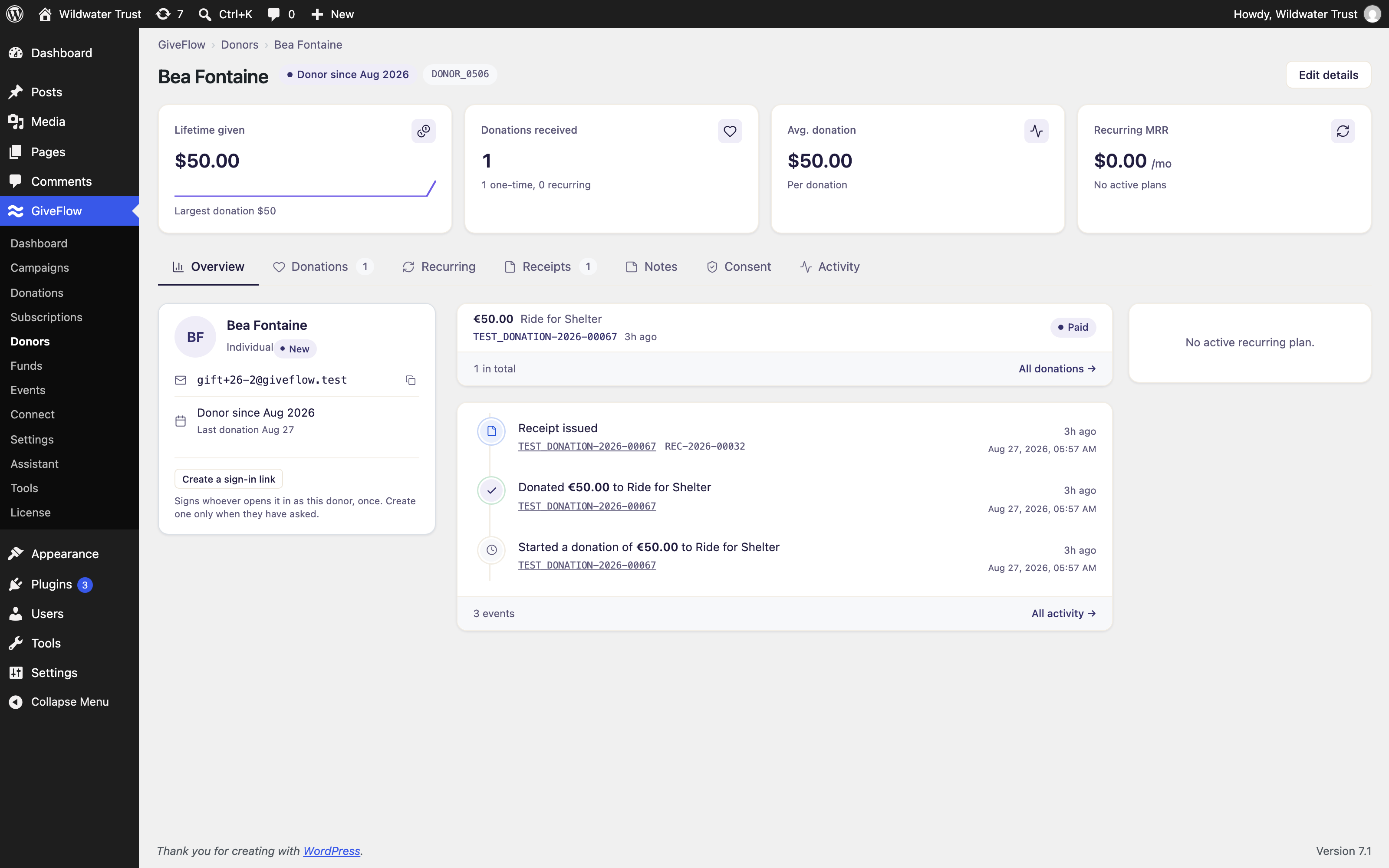
Click any donor to open their detail view. The page has tabs for Overview, Donations, Recurring, Receipts, Notes, Consent, and Activity.
Encrypted data
GiveFlow encrypts sensitive donor information at rest using AES-256-GCM encryption. The following fields are encrypted:
- Email address
- Physical address
- Phone number
- Admin notes
When you open a donor detail page, these fields are decrypted and displayed. Email lookup across the system uses a keyed hash (HMAC-SHA-256 with a per-install pepper), so the raw email is never stored or indexed in plaintext.
Donation history
The Donations tab lists every donation the donor has made. You can see each donation’s reference number, amount, status, frequency, campaign, and date, and mark a donation as paid or resend its receipt from there.
Aggregate statistics
The detail page displays key aggregate data for each donor:
- Lifetime given — the donor’s total, with their largest single donation underneath
- Donations — how many donations they have made, split into one-time and recurring
- Avg. donation — their average donation
- Recurring MRR — the monthly value of their active plans, with the next payment date
The date of their first donation (“Donor since”) and their last donation are shown on the identity card in the sidebar.
Consents
The Consent tab shows any consent records associated with the donor. This includes marketing preferences and data processing agreements.
Admin notes
You can add internal notes to any donor record. These are visible only to admin users. Notes on donor records are encrypted at rest along with other sensitive fields.
Editing donor profiles
You can update a donor’s profile information from their detail page.
- Open the donor detail page.
- Click “Edit details.”
- Update the desired fields.
- Save your changes.
Editable fields are email, first and last name, country, donor type, company, phone number, and the address lines.
Changing a donor’s email
The email address is edited in the same form as the rest of the profile, but saving a new one is confirmed separately, because the address is what identifies the donor.
- Open the donor detail page.
- Click “Edit details.”
- Enter the new email address.
- Save, then confirm the change when GiveFlow asks.
GiveFlow updates both the encrypted email and the keyed hash used for lookups, so future donations from the new address link to this record.
Donor types
GiveFlow supports three donor types:
- Individual — a single person making donations
- Organization — a company, foundation, or other entity
- Household — a family or group of people donating together
You can set or change the donor type from the donor detail page.
GDPR redaction
GiveFlow provides a soft-redact feature to comply with GDPR data deletion requests. Redaction removes personally identifiable information while preserving financial records for accounting and reporting.
What redaction removes
Redaction zeros out all PII fields:
- Name
- Email address
- Physical address
- Phone number
- Company
- Admin notes
Any active or paused recurring plans the donor has are cancelled first, so nothing keeps billing an erased donor.
What redaction keeps
Financial data remains intact for reporting purposes:
- Donation amounts, fees, and net totals
- Donation dates and statuses
- Campaign and fund associations
- Payment gateway references
How to redact a donor
- Open the donor detail page.
- Go to the Consent tab.
- Click “Redact donor” at the bottom of the card.
- Type the donor’s email address to confirm, then click “Redact donor.”
You can also redact from the donors list. Select one or more rows, choose “Redact (anonymize),” and type REDACT to confirm.
This action cannot be undone. The donor record remains in the system with zeroed PII fields, but all financial history is preserved.
CSV export
You can export your donor list as a CSV file for use in spreadsheets or other tools.
- Open GiveFlow, then Tools, then the Export tab.
- Find the Donors row.
- Tick the columns you want. You can also set a date range, which matches when each donor record was created, and limit the export to one campaign.
- Click “Generate CSV.” The file downloads to your computer.
Email addresses, phone numbers and postal addresses are available as columns, and they are decrypted into the file. Take only the columns you need: once the CSV leaves the site, nothing about it is encrypted.