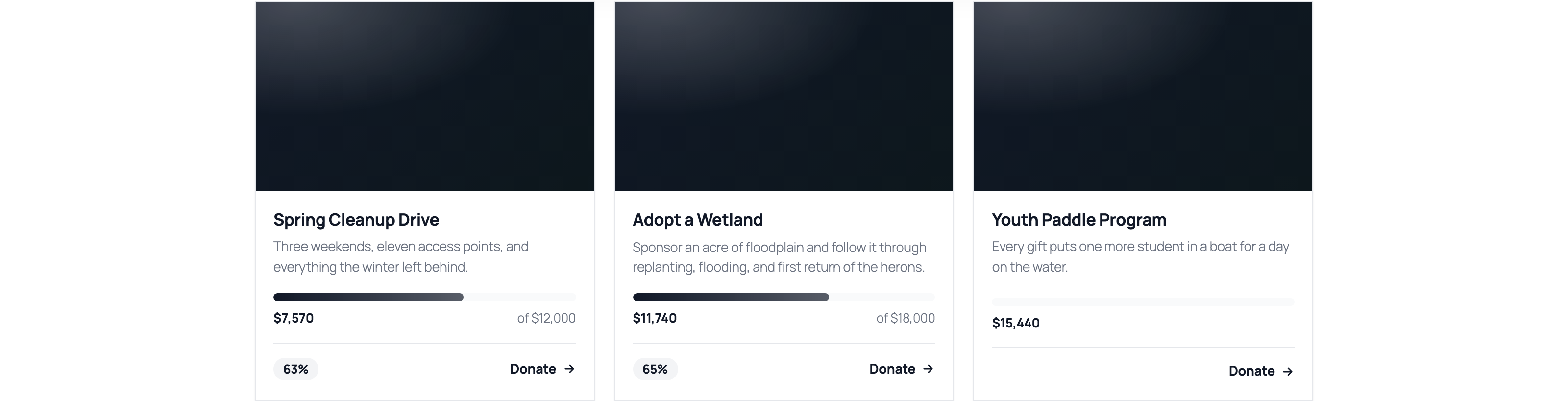
Campaign page blocks
GiveFlow provides nine Gutenberg blocks designed for campaign pages. These blocks display live campaign data and let donors take action directly on the page.
How campaign association works
Each campaign block needs to know which campaign it belongs to. There are two ways a block resolves its campaign:
- Page meta — When a block is placed on a campaign’s auto-created page, it reads the
_giveflow_campaign_idmeta from that page. No extra configuration is needed. - Explicit campaignId attribute — You can manually set the
campaignIdattribute on any block. This lets you embed campaign blocks on any page, not just the campaign’s own page.
If both are present, the explicit campaignId attribute takes priority.
Adding blocks to a campaign page
- Open the campaign’s linked WordPress page in the block editor.
- Click the + inserter button.
- Search for “GiveFlow” to see all available campaign blocks.
- Click a block to add it to the page.
Campaign pages come with a starter layout already in place: the campaign hero, an “About this campaign” section, a “Why this matters” section of ordinary heading and paragraph blocks for you to write into, recent donations, top donors, the donation form, and a campaign grid. Campaign stats and campaign progress are not seeded, because the hero already states the money, but both stay available in the inserter. You can rearrange, remove, or add more blocks as needed.
Campaign hero
Block name: giveflow/campaign-hero
The campaign hero block introduces the campaign in one section: the title, the cover image, the amount raised against the goal, a progress bar, donor and donation counts, days left where the campaign has an end date, and a donate button. It creates a strong visual introduction at the top of your campaign page, which is why the seeded layout does not repeat the stats and progress blocks below it.
The readout follows the campaign’s goal type, so a campaign counting donors leads with donors rather than money.
Key settings:
campaignId— The campaign to display (auto-detected from page meta if not set)- Toggles for the cover image, the title, the raised figure, the progress bar, and the stats, so you can pare the hero back to what you need
donateLabel— Label for the donate button, defaulting to “Donate”headingLevel— H1, H2, or H3 for the built-in title
The seeded layout turns the built-in title off and puts an editable Heading block above the hero instead, so the words belong to whoever owns the page. Turn Show title back on if you would rather use the built-in one.
Use cases:
- Place at the top of your campaign page for a bold first impression
- Use on landing pages to feature a specific campaign
Campaign stats
Block name: giveflow/campaign-stats
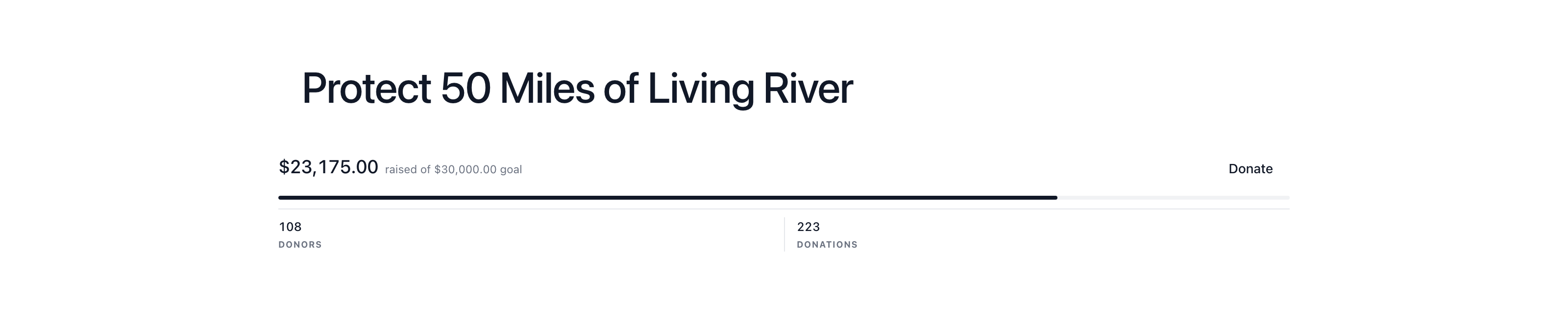
The campaign stats block shows live counters for amount raised, number of donors, and number of donations. These numbers update automatically as new donations come in.
Key settings:
campaignId— The campaign to display stats for- Toggles for each of the three counters, so you can show only the numbers you want
align— Alignment of the counter row
Use cases:
- Show social proof by displaying donation activity
- Place near the top of the page so visitors see progress immediately

Campaign progress
Block name: giveflow/campaign-progress
The campaign progress block renders a visual progress bar that tracks advancement toward your campaign goal. It works with all three goal types: amount, donations, and donors.
Key settings:
campaignId— The campaign to track progress forshowLabels— Whether to print the raised and target figures beside the baralign— Left or center
If the campaign has no goal set, the bar renders at 0 percent.
Use cases:
- Motivate donors by showing how close the campaign is to its goal
- Pair with the stats block for a complete progress overview

Donate button
Block name: giveflow/donate-button
The donate button block displays a call-to-action button that opens the campaign’s donation form in a modal over the page, so a donor never leaves what they were reading.
Key settings:
campaignId— The campaign whose donation form opens when clickedlabel— Button text, defaulting to “Donate now”align— Button alignment (left, center, right)size— Small, medium, or largefullWidth— Stretch the button to the width of its container
The block opens the campaign’s default form when that form is published, and otherwise the campaign’s most recently updated published form. If the campaign has no published form at all, visitors see nothing rather than a button that does not work. Anyone signed in who can edit posts sees a note explaining why.
Use cases:
- Place below the progress bar to encourage immediate action
- Add to any page on your site to drive donations to a specific campaign

Top donors
Block name: giveflow/top-donors
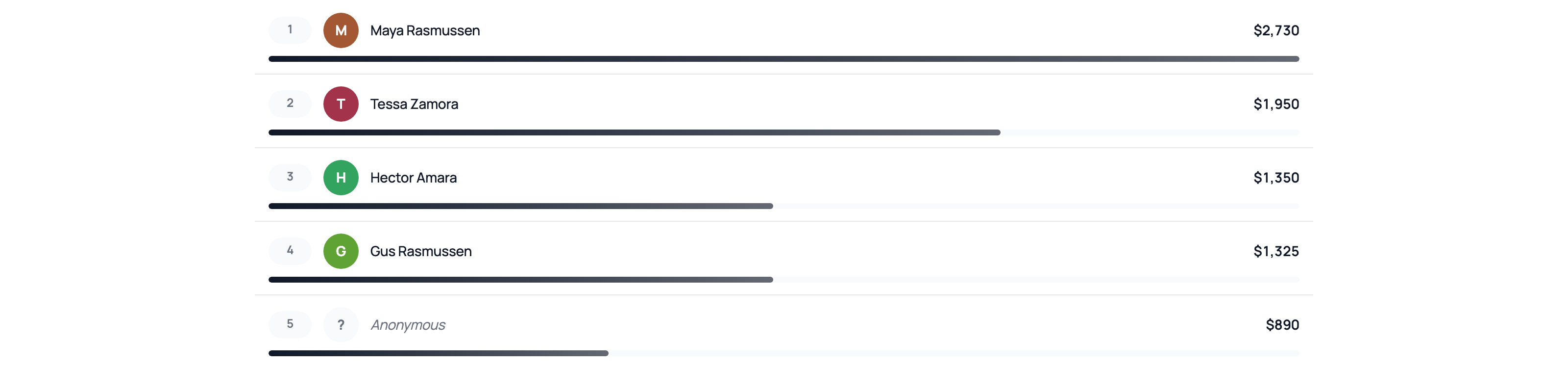
The top donors block displays a leaderboard of your campaign’s top donors, ranked by total donation amount. It highlights your most generous supporters.
Key settings:
campaignId— The campaign to show top donors forlimit— How many donors to listlayout— List or podium- Toggles for the rank number, the donation amount, the donation count per donor, and whether to hide anonymous donors
titleandemptyText— Optional heading, and the text shown before there is anything to list
Use cases:
- Encourage larger donations through friendly competition
- Recognize and thank your biggest supporters publicly
Recent donations
Block name: giveflow/recent-donations
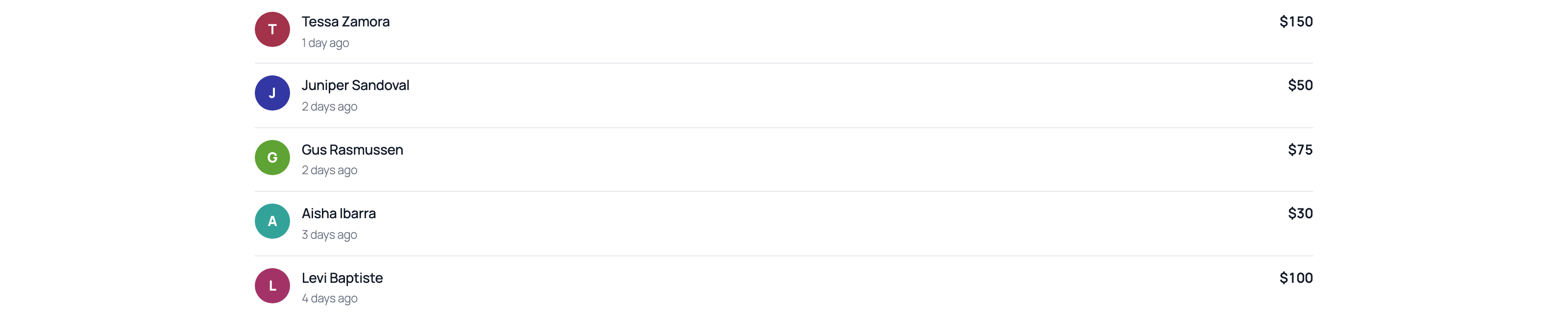
The recent donations block shows a feed of the most recent paid donations to your campaign. It creates a sense of momentum and activity.
Key settings:
campaignId— The campaign to show recent donations forlimit— How many donations to list- Toggles for the amount, the time, the donor’s message, and whether anonymous donations appear
titleandemptyText— Optional heading, and the text shown before there is anything to list
Use cases:
- Build urgency and social proof with real-time donation activity
- Show visitors that others are actively supporting the cause
Supporter wall
Block name: giveflow/supporter-wall
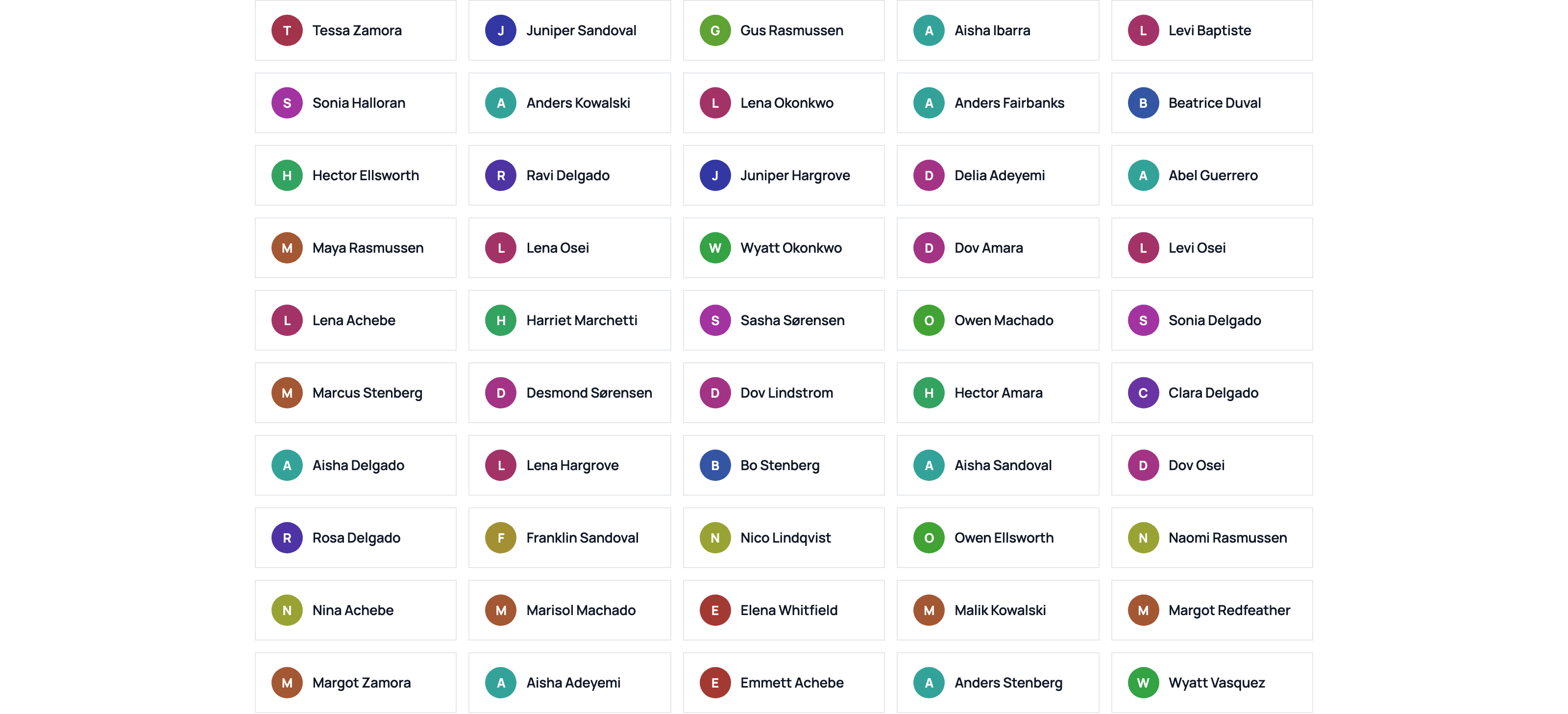
The supporter wall block displays a grid of supporter cards, each with an initial avatar and the supporter’s name. It creates a visual community of everyone who has donated to the campaign. There is one card per donor however many times they gave, and anonymous donations are never shown.
Key settings:
campaignId— The campaign to show supporters forlimit— How many supporters to showsort— Most recent or alphabeticalcolumns— Auto, 2, 3, or 4- A minimum amount, so only supporters who gave at least that much appear
- Toggles for the supporter’s message and the amount given
Use cases:
- Celebrate your donor community with a visual display
- Encourage new donors to join by showing how many people have already given
Donation form
Block name: giveflow/donation-form
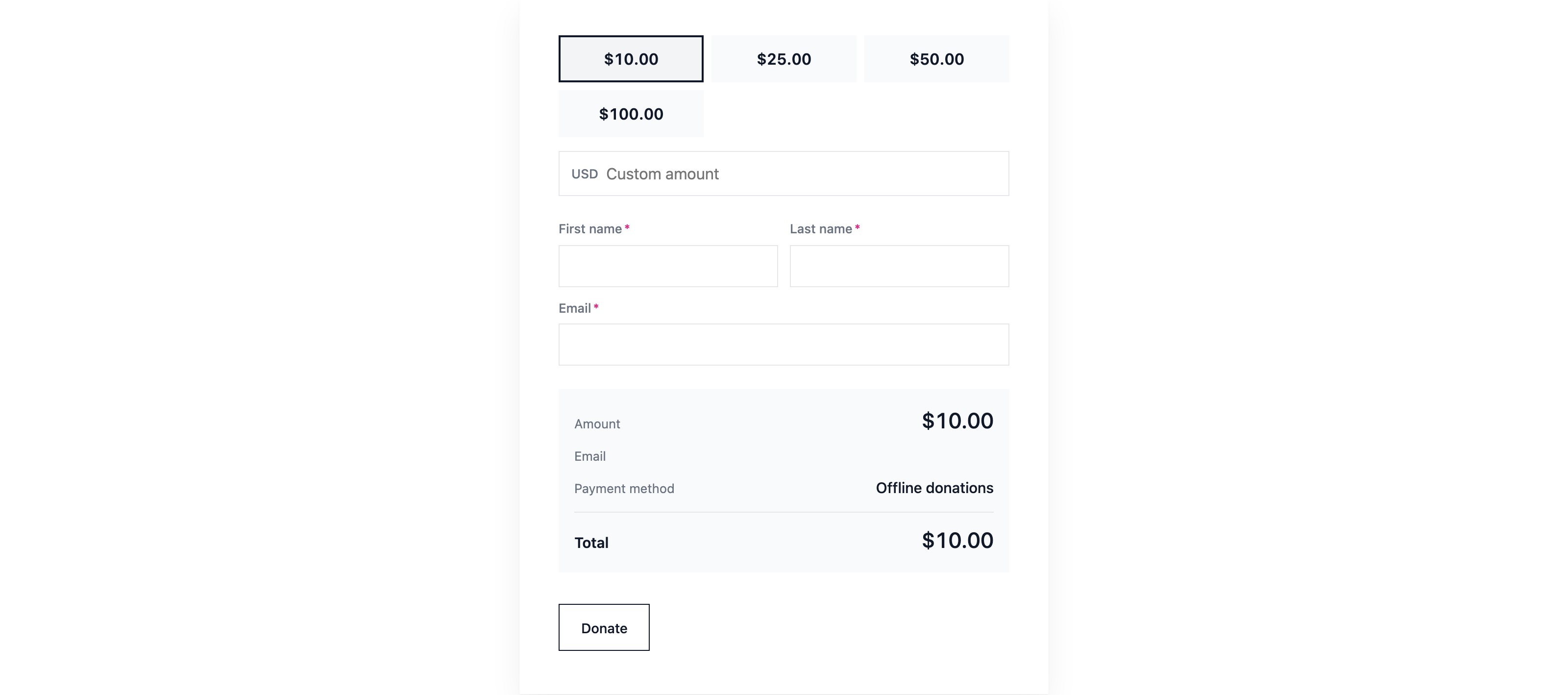
The donation form block renders the campaign’s donation form inline on the page, so donors can give without leaving it. The seeded campaign layout places it in the sidebar column. It picks the same form as the donate button: the campaign’s default form when published, otherwise the campaign’s most recently updated published form.
Key settings:
campaignId— The campaign whose form is renderedemptyText— What to show when there is no published form, or the campaign is not taking donations, so a heading above the block never captions an empty space
Use cases:
- Keep giving on the campaign page itself rather than behind a button
- Embed a specific campaign’s form on any other page
Campaigns grid
Block name: giveflow/campaign-grid
The campaigns grid block shows a responsive grid of your other published campaigns as cards. The campaign the page is about is excluded from its own grid.
Key settings:
campaignId— The campaign to exclude (auto-detected from page meta if not set)count— How many campaigns to showorderBy— Most recent, most funded, or ending soonheadingandemptyText— Optional heading, and the text shown when there is nothing to list
Use cases:
- Send visitors on to your other campaigns from the bottom of a campaign page
- Build a simple “all campaigns” page anywhere on your site